Getting started
Accessing your product
You can download your new child theme from the link included in your order confirmation email, from your Brand & Build account.
You will have two files: themename-for-kadence.zip and themename-supplementary-files.zip.
themename-for-kadence.zip is your actual child theme. Do NOT extract this zip file, but DO extract themename-supplementary-files.zip as it contains a changelog, and any additional assets or information required for the child theme.
Before you begin
You must have the free Kadence Theme by KadenceWP and the free Gutenberg Blocks by Kadence Blocks plugin installed to use this Child Theme. Both are available from the WordPress.org repository.
To avoid any issues during installation it is highly recommended that you use this child theme on a fresh WordPress installation.
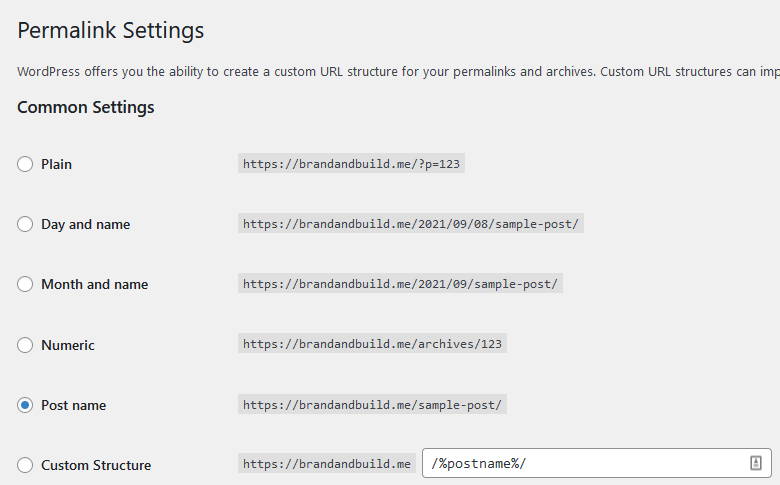
It is also a good idea for SEO purposes to navigate to Settings > Permalinks and set the Common Settings to Post name.
Theme installation
General customisation
Replacing images
This theme will install with the stock images you see in the demo but we do not provide a license for use and they remain the property of their respective owners. For ease, you can assume that any images of an actual person who is the subject of the theme (Raven for instance) are premium stock images and may not be used by you without purchasing your own license. Images used for content and blog posts are sourced from sites like Unsplash and Kaboom Pics, which you can use for free without attribution.
Using the Kadence Theme
Extensive documentation on using the Kadence theme can be found here.
Using Kadence Blocks
Extensive documentation on using Kadence blocks can be found here.
Customising this theme
Changing the shop page columns
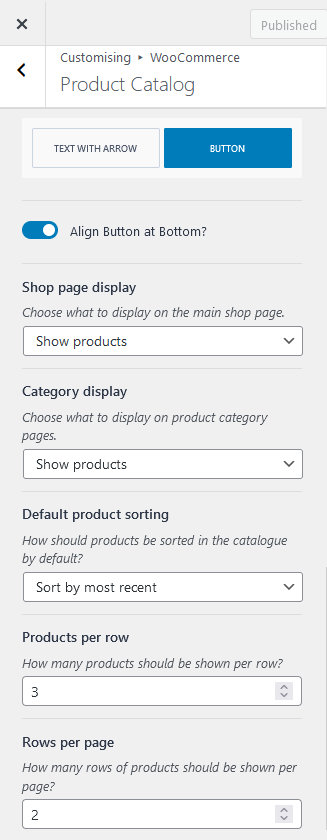
On import, your WooCommerce shop page product columns may differ from what you see on the demo.
If this is the case and you do not see 3 columns, navigate to Appearance > Customise > WooCommerce > Product Catalog. Scroll to the bottom and set the Products per row value to 3, and the Rows per page to 2 (or however many products you want to display per page).
Custom fonts
The custom fonts used in Elodie are Butler Ultra Light (serif headings) and Sastica Nora (script font). Both fonts are free for personal and commercial use and will install with the child theme.
Changelog
Version 1.0 (Created)